Security plugins in WordPress are bloatware with a halo: they slow everything down and sell comfort, not protection. Wordfence, All-In-One Security, Solid Security, Sucuri… They are all unnecessary and you don’t need to install any of them.
However, since selling security always works, even when it is mostly placebo, they are very popular. Far too many developers and so-called experts tell you to use one. Well, don’t.
Why security plugins are bad for performance
In general, every time a user requests a page, WordPress needs to run expensive operations in terms of execution time: WordPress runs its PHP code, which runs every plugin’s code, and those plugins often query the database as well.
Now, when you install a security plugin, WordPress also needs to run the security plugin’s code that handles all the features it advertises:
- Firewall
- Brute force protection
- File change detection
- Malware scanner
- Login security
- Activity logs
- Bot protection
- Other small security tools
Almost all, if not all, of these features need to be executed on every request. That comes at a cost, and here you can read exactly what that cost is.
We are not saying we should ignore security. On the contrary, it is extremely important nowadays. However, security should ideally be implemented at the server or CDN level, so that when a malicious actor attempts to access your site, they are blocked before they waste server resources by running the application code.
Let’s illustrate this with an example. But first, to help you visualize how the request flow for a typical website works, check out this diagram:
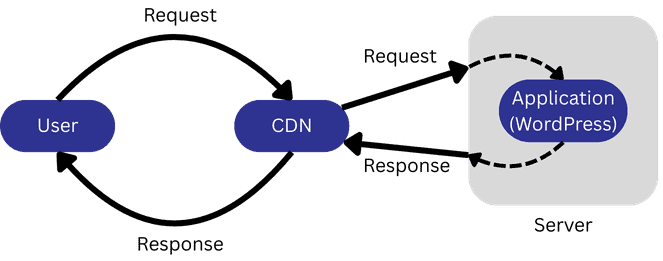
Now, consider a business in Germany that serves exclusively German clients. And imagine a Vietnamese user or bot attempting to log in as an admin just to install malware.
Here is what happens when you rely on a security plugin:
- The user (or bot) types
https://example.com/wp-login.phpinto the address bar. - The request goes through the CDN.
- The request reaches the server.
- The web server passes the request to WordPress.
- WordPress executes its core code.
- WordPress executes all plugin code.
- The security plugin processes the request and decides to block it.
- WordPress is told to respond with a block page, 404 page, or another configured response.
- WordPress must then generate that page. If you use a page builder, it loads that as well. If not, it still relies on the block editor (Gutenberg).
Now compare that with handling security properly by configuring your CDN instead of installing a security plugin:
- The user (or bot) types
https://example.com/wp-login.phpinto the address bar. - The request reaches the CDN.
- The CDN blocks the request, for example because Vietnamese traffic is not allowed.
- WordPress never runs, and server resources remain available for legitimate users.
Now picture this for thousands of such requests occurring simultaneously within a few seconds, which is very common when bots are involved (just bots being bots). As we said, by implementing security the right way, at the CDN or server level, you save a significant amount of server resources.
Security plugins don’t protect you from the real threats
Thomas J. Raef is the founder of We Watch Your Website, a company that has been removing malware from websites since 2007. He appeared on a podcast by WP Tavern to discuss security and how websites get hacked. According to him, the real threats a WordPress website faces are:
- Compromised usernames and passwords
- Vulnerabilities in plugins and themes
- Stolen session cookies
This means that as long as you use strong and unique passwords, keep all plugins and themes updated, avoid installing suspicious apps, plugins, or programs on your computer or website, and do not download anything from unknown or untrustworthy sources, 90% of the work is already done.
But what about the remaining 10%?
How to really protect your WordPress site without slowing it down
Let’s see all the measures you can take to protect your site from real threats without using plugins and while keeping as many security features as possible out of the application layer. The goal is to prevent WordPress from wasting resources on tasks unrelated to serving the page, that is, stopping bad actors before they reach WordPress, at the server or CDN level.
This article is structured in three parts: essential WordPress security tips, Cloudflare security rules, and .htaccess rules. You will notice that many of the Cloudflare and .htaccess rules check for the logged-in cookie or the user agent of the request. We know that these can easily be faked to disguise someone as a legitimate user. The Cloudflare and .htaccess rules we mention mainly target automated scripts run by bots, which rarely bother to carry out more sophisticated attacks by sending cookies or modifying request details. A human who truly wants to target your site can easily bypass those rules, which is why it is extremely important to follow the essential security tips below.
Essential WordPress security tips
First and foremost, there are a few basic tips and adjustments for WordPress that everyone should know and take into account.
1) Keep WordPress, your theme and all your plugins updated
This is extremely important. As mentioned before, outdated versions are commonly exploited, and having even a single outdated plugin is enough for a malicious user to gain access to your site through a security vulnerability. This also includes paid or premium plugins with expired licenses that can no longer be updated. If you have any of those and do not want to renew the license, it’s better to look for an alternative.
2) Do not download paid plugins from unofficial sources
All those “nulled” versions of paid plugins are very dangerous, as you have no guarantee that they are free of malware. In fact, you should always assume that unofficial downloads have been compromised. Please support the authors and use the official method to access the features you need 🙂
3) Use strong and unique passwords
Yes, we know that passwords are annoying. But they need to be, otherwise someone else can easily gain access to your account. Never use weak passwords such as “123456”, “admin123”, or your birth date. The more complex the password, the better. And never use the same password across different services. Use one password for your admin account, another for your hosting provider, another for your FTP account, another for your database, and so on.
4) Don’t use the “admin” username
This helps prevent brute force attacks that specifically target common usernames such as “admin” and “administrator”, which are often the default usernames in automatic WordPress installations.
5) Protect your login page
The wp-login.php page is probably the most targeted page in brute force attacks. It therefore makes sense to protect it.
The option we recommend most is simply changing the login page URL, for example to https://domain.com/customlogin. If there is no known entry point, attackers cannot even start a brute force attack.
The best plugin to change the login URL is the lightweight WPS Hide Login. It does this task without any bloat. However, most probably you are also interested in optimizing your site. In that case, we recommend Perfmatters instead, which just so happens to include this feature.
Another commonly mentioned option is installing a plugin to limit login attempts in order to prevent brute force attacks. While this is better than nothing, we still prefer hiding the login page. When you hide the login page, you can block the wp-login.php page at the server or CDN level, making sure that malicious requests won’t even touch WordPress. By contrast, when you only limit login attempts, every request still triggers WordPress to execute, run all PHP code, including plugin code, and make database queries in order to determine whether the request should be blocked. But if you anyway prefer to use a plugin to limit login attempts, avoid the famous Limit Login Attempts Reloaded plugin: a more performant alternative is Loginizer.
6) Use 2FA
We really like the official Two Factor plugin because it’s lightweight, supports all the major authenticator apps and other authentication methods, and has no annoying premium upsells. Yes, we know we said no plugins required, but installing this one will not do any harm, we promise!
Thanks to Willem de Zoete for the suggestion!
7) A few more (optional) tweaks
The previous six points cover the most basic security tips to protect your website. Before moving on to the next section, we recommend reading this post by Vladimir Smitka. It provides several additional ways to harden your WordPress installation, and they are not the typical suggestions you will find in every other SEO-optimized article, so go read it!
Cloudflare
All right, now we get to the fun part. You have applied the basic security tips but would like to be even better protected. Do not install a security plugin! You just need Cloudflare and its free plan. First, if you do not have an account there, go ahead, create one and make sure your website is proxied behind it. There are plenty of guides available out there, so be sure to check them out.
Once your website is behind Cloudflare, it’s time to do the magic with security rules and rate limiting rules. These rules are easy to understand but a bit tricky to set up, which is what we are going to show you here. The rules are a set of instructions you give to Cloudflare that tell it what to do with requests that meet certain conditions. For example, you can easily say, “Block every request that comes from Vietnam.”
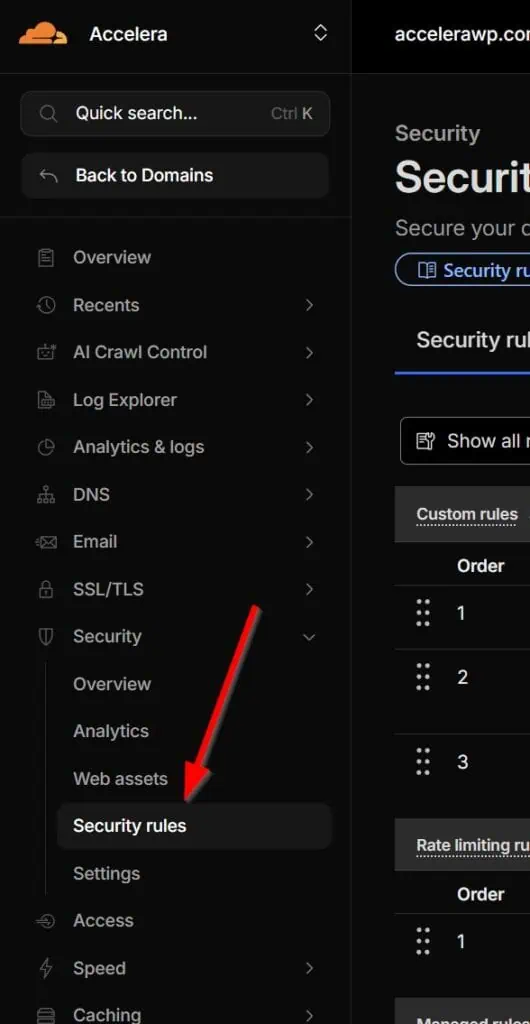
If you are not already in your Cloudflare account, log in and go to Security > Security Rules.
0) Whitelist IPs and allowed services
This preliminary step technically also involves creating a security rule, but instead of blocking traffic, we need to allow it. Why? Because if you simply create blocking security rules, you may also block legitimate services such as search engine crawlers, plugins, and more.
Click on + Create rule and add a new Custom rule. Give it a name, such as “Whitelist IPs & services”, and start filling out the fields.
- Field: corresponds to the part of the request that Cloudflare evaluates (IP, user agent, URI path…)
- Operator: The comparison logic used to test the field (equals, contains, greater than…).
- Value: The specific data the field is compared against.
For example, let’s say you are using ShortPixel as your image optimization plugin, the SendGrid plugin to handle your emails and lists, and WP Rocket as your cache plugin. You will need to find out all IPs that ShortPixel uses. In cases where the IPs are not publicly available, such as with SendGrid and WP Rocket, you can identify these requests by their user agent. Then add them like this:
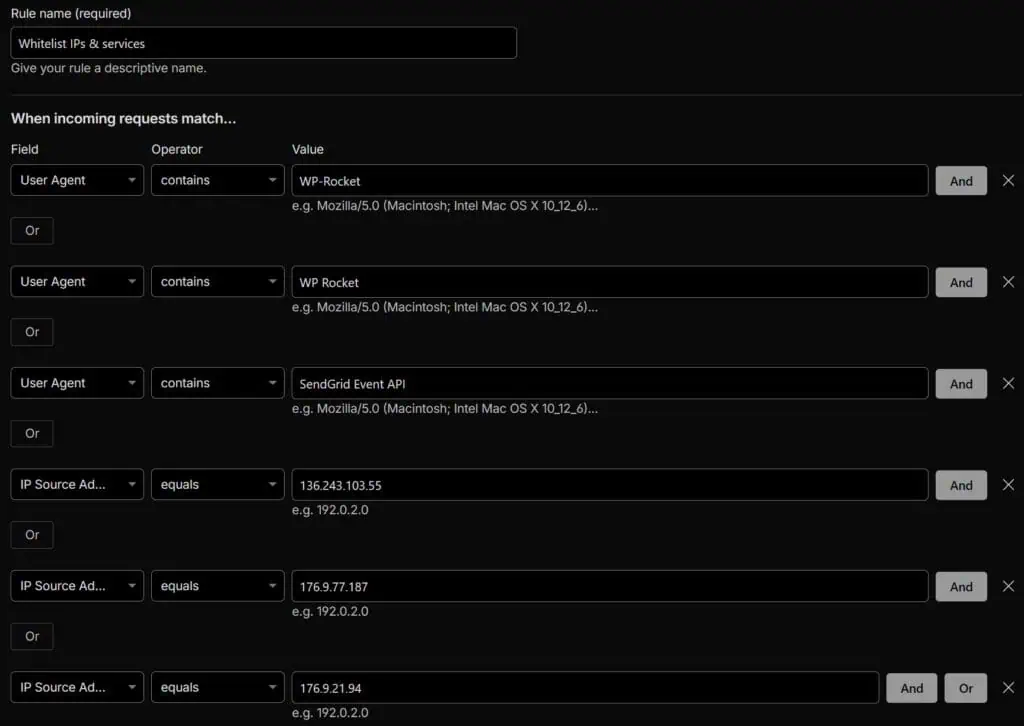
Or you can copy and paste the following expression into the expression builder:
(http.user_agent contains "WP-Rocket") or (http.user_agent contains "WP Rocket") or (http.user_agent contains "SendGrid Event API") or (ip.src eq 136.243.103.55) or (ip.src eq 176.9.77.187) or (ip.src eq 176.9.21.94)Remember, you’ll have to edit it and modify all the values, add or remove some of them, depending on what your website needs access to.
Scroll down and under Choose action, select “Skip”, leave “Log matching requests” enabled, and keep all WAF components to skip below selected:
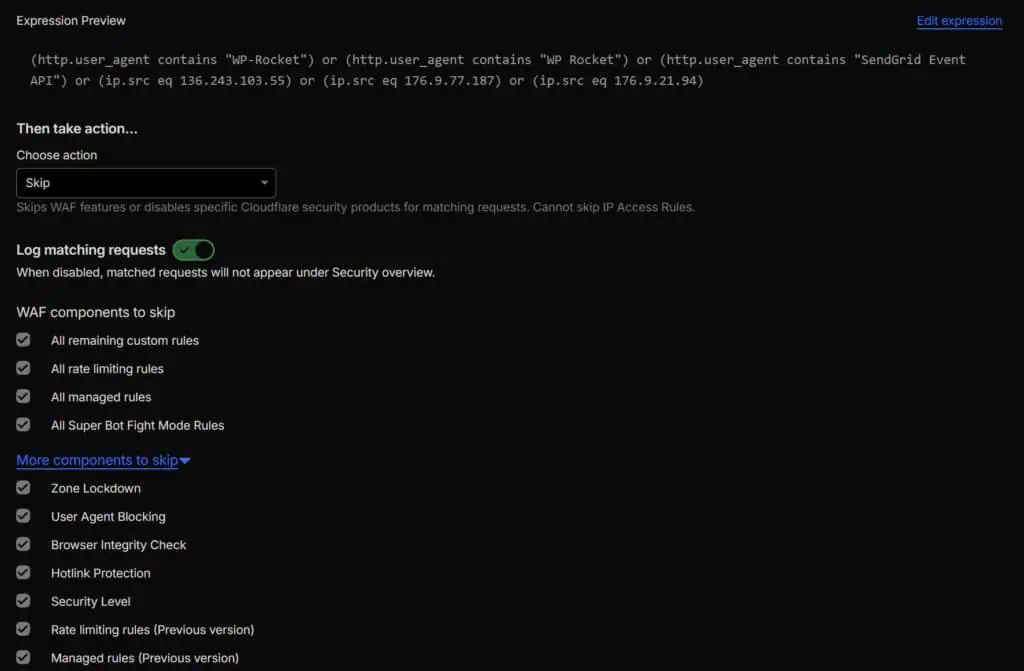
In plain language, this rule means:
- If the incoming request comes from a user agent that contains
WP-Rocket, - or a user agent that contains
WP Rocket, - or a user agent that contains
SendGrid Event API, - or from the IP
136.243.103.55, - or from the IP
176.9.77.187, - or from the IP
176.9.21.94, - skip all firewall components and allow the request.
Save the rule and create the next one.
1) Block bad requests
Time to block bad people (usually bots). Name this next Custom rule something like “WordPress – Block bad requests” and add the following expression using the expression builder:
(http.request.uri.path wildcard r"*/admin/*" and not http.cookie contains "wordpress_logged_in") or (http.request.uri.path wildcard r"*wlwmanifest*") or (starts_with(http.request.uri.path, "/.") and not cf.client.bot and not starts_with(http.request.uri.path, "/.well-known")) or (http.request.uri.path wildcard r"*/xmlrpc.php") or (http.request.uri.path wildcard r"*/wp-json/*" and not http.cookie contains "wordpress_logged_in" and not http.request.uri.path contains "wp-json/wp/v2/search" and not cf.client.bot) or (starts_with(http.request.uri.path, "/wp-") and ends_with(http.request.uri.path, "/") and not ends_with(http.request.uri.path, "wp-admin/") and not http.request.uri.path contains "wp-json") or (http.request.uri.query eq "action=register") or (http.request.method eq "GET" and ends_with(http.request.uri.path, ".php") and http.request.uri.path ne "/index.php" and http.request.uri.path ne "/wp-login.php" and http.request.uri.path ne "/wp-cron.php" and not http.cookie contains "wordpress_logged_in")The action that you should take for this rule is “Block”, plain and simple. And it’s very important that it’s added below the “Whitelist IPs & services” rule, otherwise those will not be whitelisted because they will be blocked before they reach the whitelist rule. Here is how the rule should look:
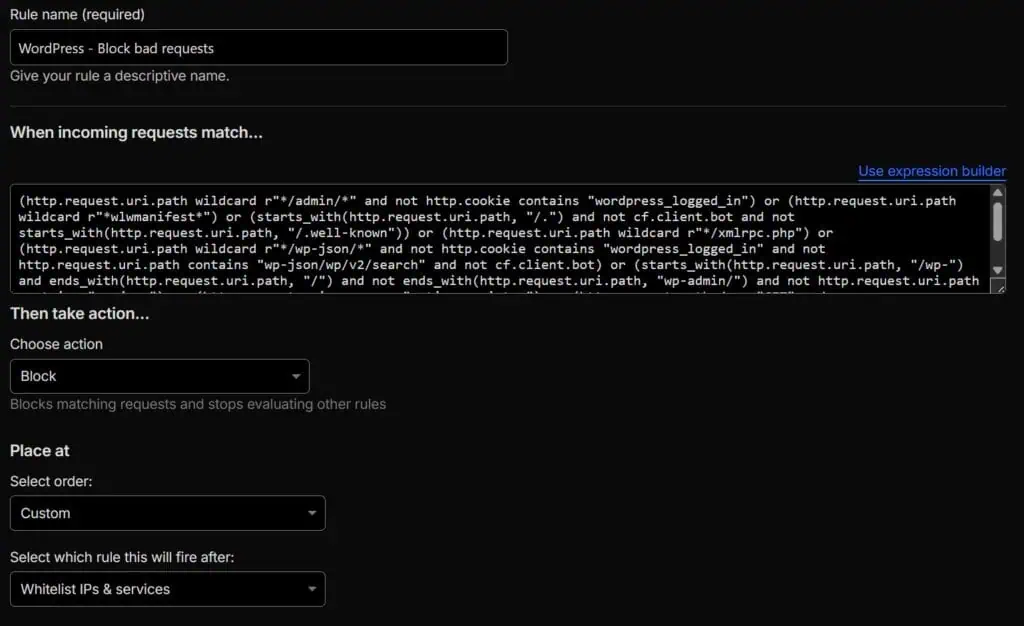
Let’s break down each condition of the rule.
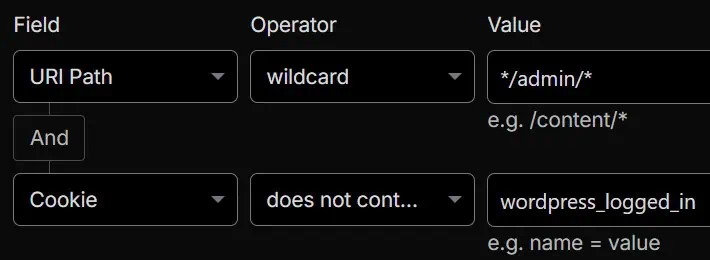
This blocks all requests from logged-out users to any path that contains /admin/. Bots repeatedly try to access this kind of URLs.
Warning: Some themes or builders, such as Divi, store certain resources under a folder called admin, so if you notice issues, remove this condition.

This one is straightforward. The wlwmanifest link was used by Windows Live Writer, which we are sure you no longer use, and it is still a target for attacks. This condition blocks all requests to any path that contains wlwmanifest.
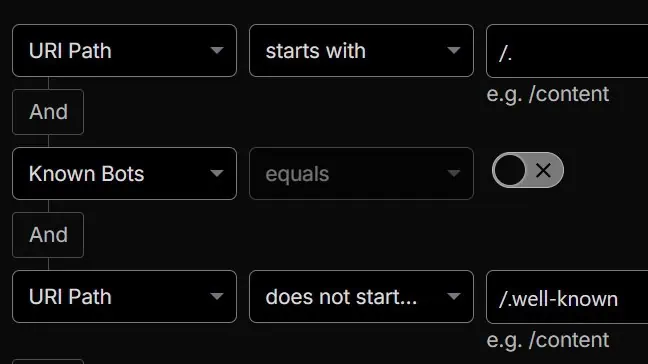
Bots also target files and folders such as /.env or /.git/config because these often expose high-value secrets or internal application details when they are accidentally accessible on a web server. On a normal WordPress site, these do not exist. In fact, there is only one file and one folder that start with /.: the .htaccess file, which should not be publicly accessible, and the .well-known folder, which is and should be accessible for certificate verification and for the security.txt file. That’s why this condition blocks every request to /. except when it’s a known and harmless bot or when the request goes to a subfolder or file inside /.well-known.

xmlrpc.php is a core WordPress endpoint that implements the XML-RPC protocol, allowing remote systems to interact with a WordPress site without using the web UI. Historically, it was the primary API before the modern REST API existed, and xmlrpc.php is still a commonly targeted file in attacks because sometimes it’s still used, especially by the Jetpack plugin.
Warning: There is a high chance you can safely leave this condition enabled. However, if you know that a plugin on your site uses the XML-RPC protocol, remove this condition from the security rule so those requests can pass through Cloudflare. Or even better, leave the block enabled and whitelist the specific service or services that need it.
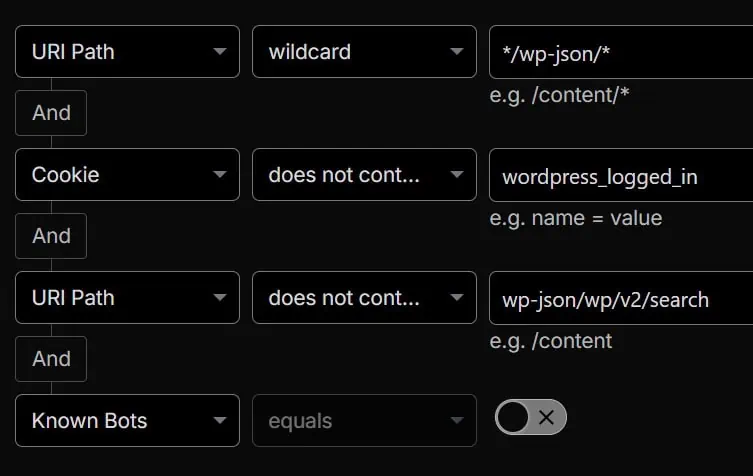
This condition blocks anonymous access to the WordPress REST API, meaning requests to the path /wp-json/, while allowing logged-in users, since the backend constantly calls /wp-json/, and search functionality to continue working normally. Just in case, it also excludes known verified bots from being blocked.
Warning: The REST API is widely used. Many plugins and services rely on it to retrieve information and provide functionality. For example, WooCommerce makes requests to /wp-json/wc/, Contact Form 7 to /wp-json/contact-form-7/, and Events Manager to /wp-json/events-manager/. You must list all of these in your condition, otherwise the respective plugin or service will most likely stop working.
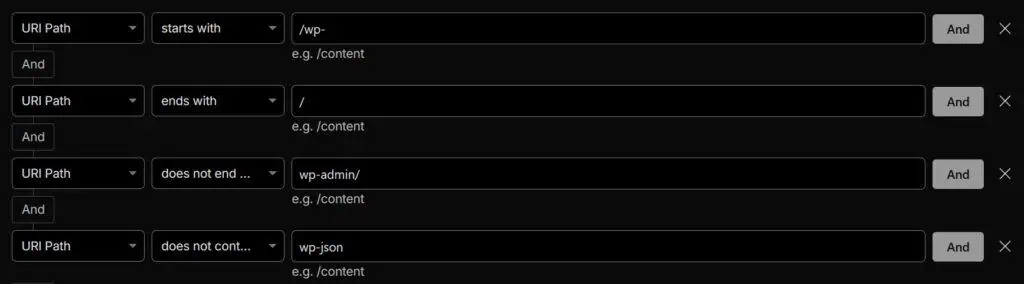
Bots love to look for exposed WordPress directory listings by targeting all default WordPress directories and subdirectories. This condition matches requests whose URL path starts with /wp- and ends with a trailing slash, such as /wp-includes/ or /wp-content/uploads/, while excluding the admin area (/wp-admin/) and the REST API (/wp-json/). No normal user will directly request a directory like this, so it should be relatively safe to block them.

When the WordPress setting “Anyone can register” is enabled, a new URL becomes available for everyone: https://yourdomain.com/wp-login.php?action=register. However, very few people use the default WordPress registration page, and many sites don’t allow user registration at all. Still, bots target the registration URL.
Warning: Do not add this condition if this page is intended for public use (https://yourdomain.com/wp-login.php?action=register), or if you have any page that uses the action=register parameter, otherwise it will not work.
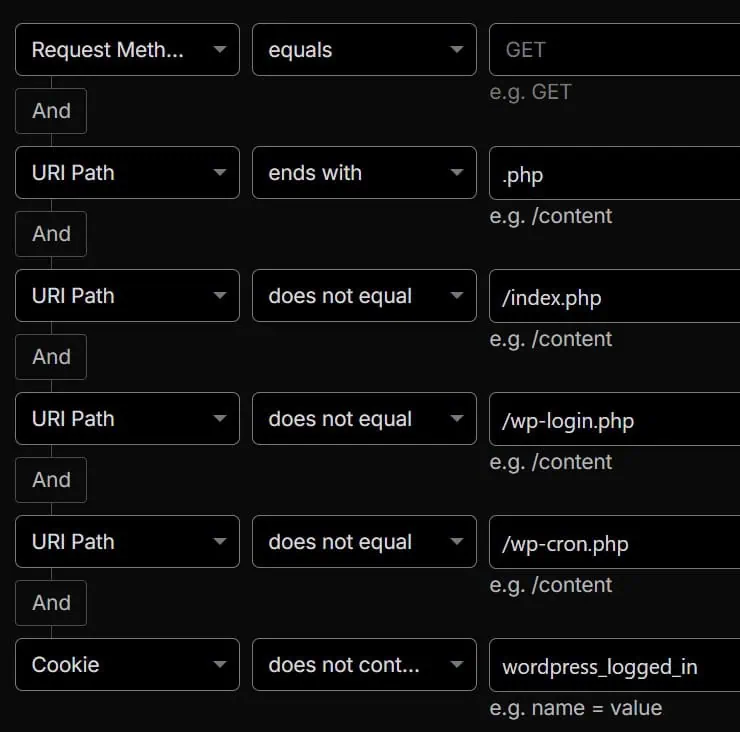
And finally, we have a condition that targets people or bots who are not logged in and are trying to directly load arbitrary .php files. This is hardly ever legitimate behavior and is usually a sign of probing or exploitation attempts. In theory, /index.php, /wp-login.php, and /wp-cron.php are the only PHP files that should be directly requested with a GET request by a logged-out user. POST requests are common among real visitors, so blocking them would be a mistake. Additionally, almost every page in the admin area is a GET request to a PHP file, such as https://accelerawp.com/wp-admin/edit.php, which is why this condition targets only GET requests from guests.
Warning: Review your site’s functionality while logged out, as some features may stop working. For example, when you change the administrator email address, WordPress sends a confirmation link to the new address that points to profile.php, such as https://www.domain.com/wp-admin/profile.php?newuseremail=9dcd1943c534457b9e8cd9307c7fd17d. If you open that link in a browser where you are not logged in, the request will be blocked because profile.php is not among the allowed pages for logged-out users. In this specific case, simply make sure you are logged in before opening the link.
If you discover that additional PHP pages must be accessible while logged out, simply add them to the condition.
2) Managed challenge
There are some requests that cannot be directly blocked like the ones from the previous rule, because doing so would block legitimate visits or requests. Just look at all the exceptions we already discussed above. However, with Cloudflare we can add the well-known Managed Challenge, which is the typical “Are you a human?” screen, for those requests that cannot be directly blocked and that are not made in the background, since a challenge would block them:
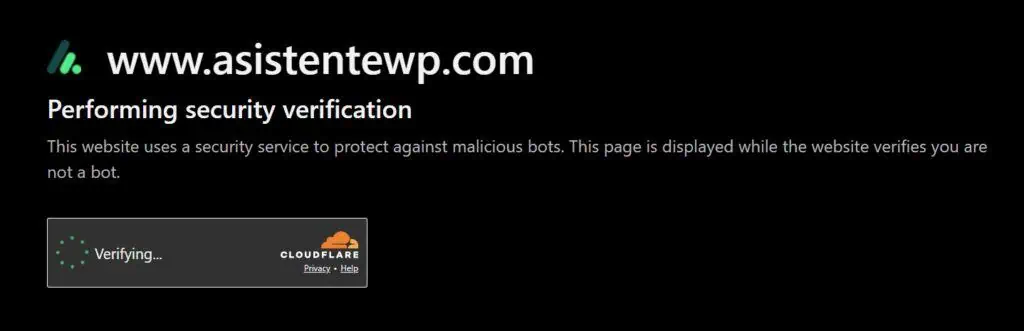
Create a new Custom rule, name it “WordPress – Managed Challenge,” and add the following expression using the expression builder:
(http.request.uri.path wildcard r"*/wp-login.php") or (http.request.uri.query wildcard r"*author=*") or (http.request.uri.path wildcard r"*.txt" and http.request.uri.path ne "/robots.txt" and not cf.client.bot and not starts_with(http.request.uri.path, "/.well-known")) or (not ip.src.country in {"IL" "ES"} and not cf.client.bot and not starts_with(http.request.uri.path, "/.well-known") and ip.src.asnum ne 13335)The action that you should choose for this rule is “Managed Challenge”, and it’s again very important that it’s added below the “Whitelist IPs & services” rule. It should look like this:
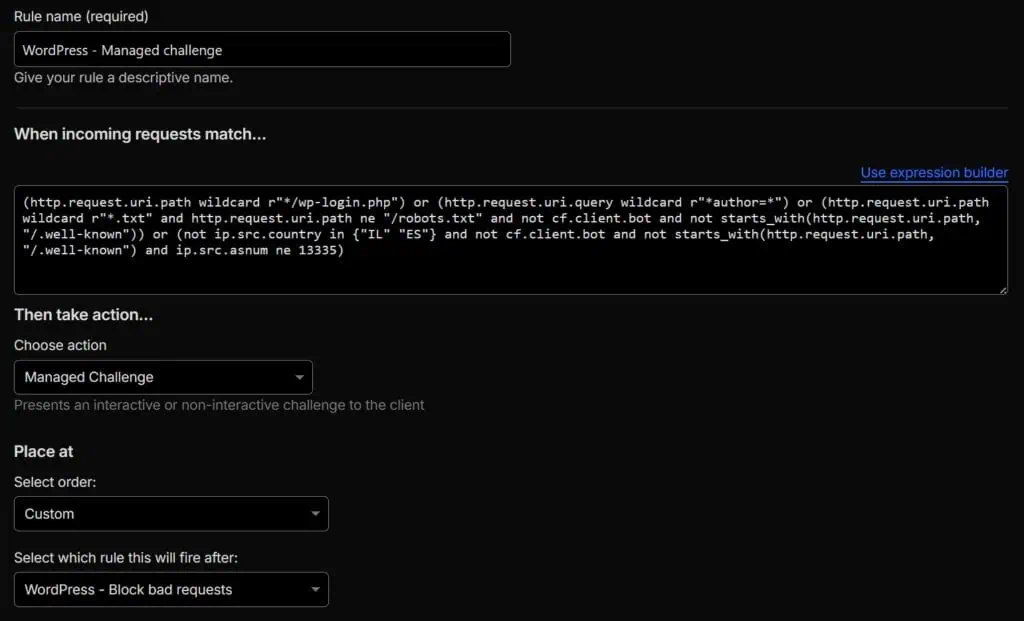
Let’s break down each condition of the rule too.
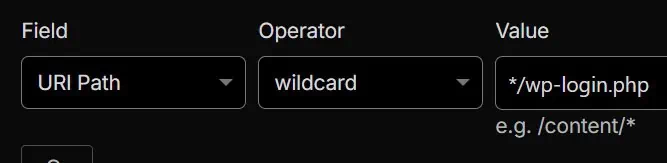
This is the easiest one. No one needs to access your login page other than you and your registered users. Therefore, you need to keep all bots away by placing the wp-login.php page behind a Managed Challenge.
If you change your login page, feel free to add this condition to the Block rule above instead of here, because in that case absolutely no one will need to access wp-login.php. You will also need to add your new login page to this Managed Challenge rule, replacing wp-login.php.

A common attack in WordPress is user enumeration, because it’s a very fast way to identify users of a WordPress installation. Try it yourself. Access yourdomain.com/?author=1 and you will most likely land on an author page that reveals a username. The attack is then simple. Just scan the homepage with the query string author=1, author=2, author=3, and so on, and you will get a list of all users to attempt to brute-force their passwords. This scan is almost always done by scripts and bots, so you only need to tell Cloudflare to challenge every URL that contains the query string author=. And now you can still display the author page while stopping those annoying attacks.
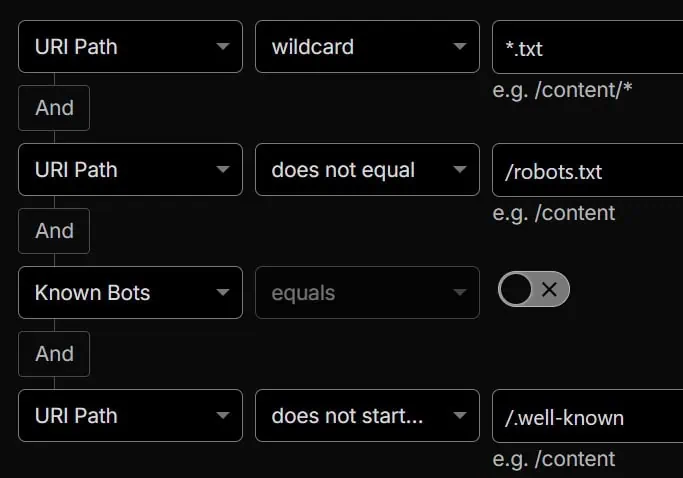
Bots that try to find exposed files will also attempt to locate .txt files, which usually provide information about the exact versions of various plugins, such as changelog.txt or readme.txt. Therefore, for most sites it should be safe to challenge all requests for .txt files, unless the request is for robots.txt, comes from a verified bot, or targets the /.well-known folder, which is commonly accessed by Let’s Encrypt, for example.
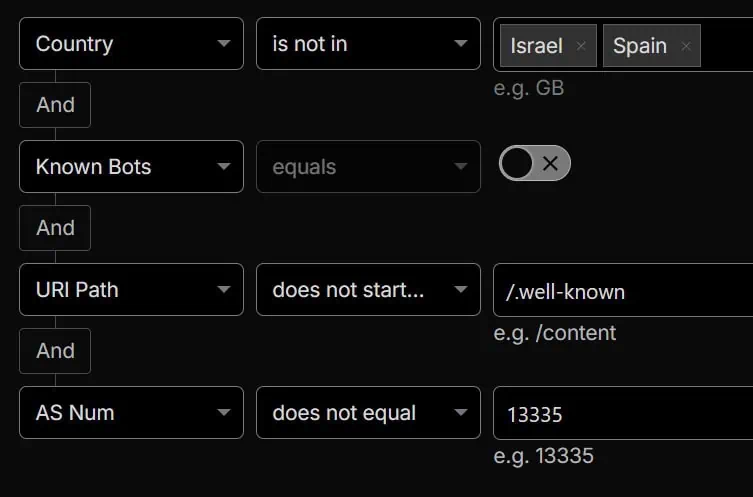
All conditions are optional, but this one is even more optional, if that makes sense. This is purely a country block. If your website serves only customers from the US, why should your server waste resources on other countries, especially countries like Vietnam, China, or Russia, where most spam originates?
In this particular example, we are essentially challenging any request that does not come from Israel or Spain, unless it is from a known and trusted bot, it targets the /.well-known folder, or it comes from the Autonomous System 13335, which is owned by Cloudflare and used, for example, when using their AI support bot, which would otherwise not be able to access your site for troubleshooting.
Warning: You must customize this condition according to the countries your customers or visitors come from, or remove it entirely if your traffic is international.
3) Rate limiting
Finally, we need to address the requests that manage to bypass the two previous rules. It will never be possible to block 100 percent of malicious requests, but what we can do is rate limit them. From time to time, a bot may launch hundreds of requests within a few seconds, which can potentially overload the server, depending on the magnitude of the attack. Sometimes it’s not even a bad bot. We have personally seen this with crawlers from Meta and Microsoft, which occasionally go wild and start trying different combinations of URLs, effectively taking down websites.
Add a new Rate limiting rule, not a Custom rule, and name it “WordPress basic DDOS protection”, for example. Then add the following expression:
(not http.request.uri.path contains "/wp-" and not cf.bot_management.verified_bot) or (http.request.uri.path wildcard r"/wp-content/themes/*/style*.css" and not cf.bot_management.verified_bot) or (cf.verified_bot_category eq "AI Crawler")Scroll down and, under the “When rate exceeds…” section, start with 10 requests every 10 seconds. It’s almost impossible for a human to visit more than 10 pages in 10 seconds or less. The action you should choose is “Block” for 10 seconds. It should look like this:
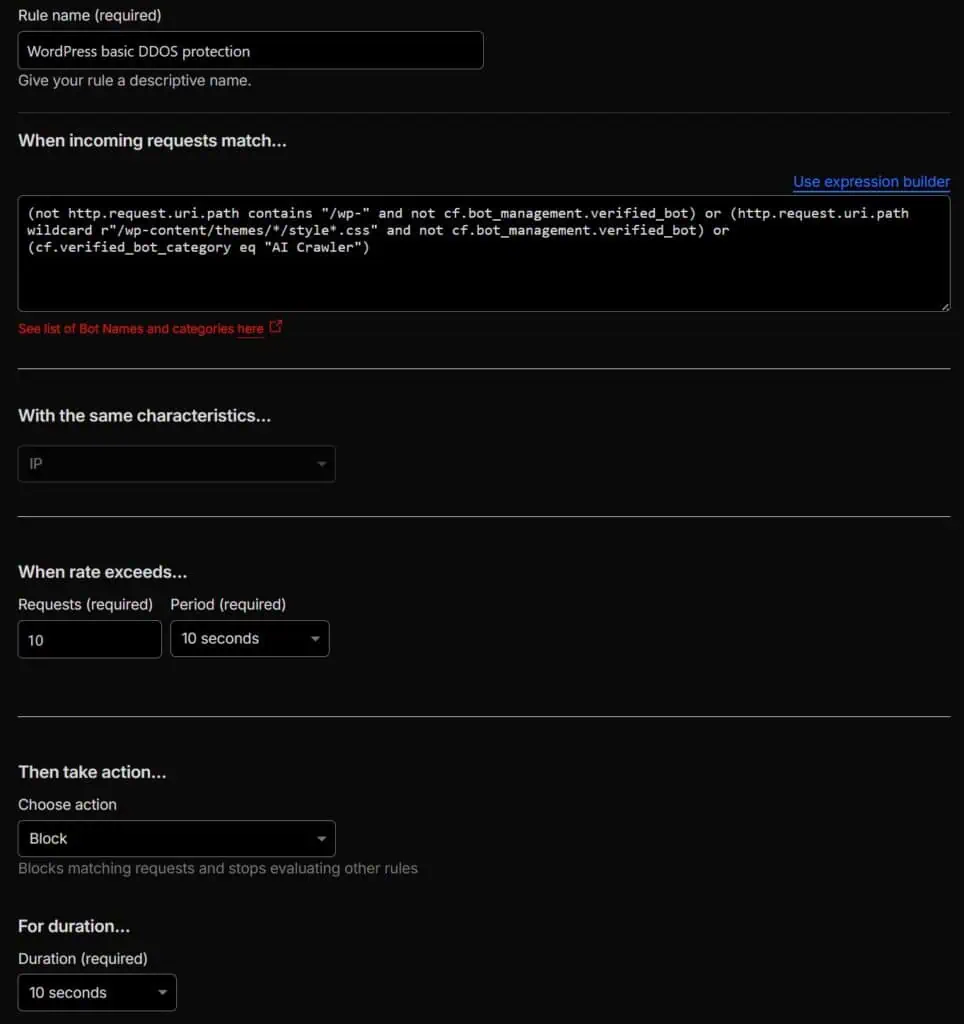
Let’s check the conditions of the rule in more detail.
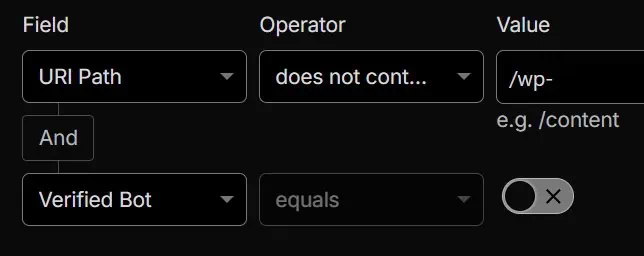
We cannot rate limit every single request, because when you visit a page, not only the page itself is requested, but also all the static resources linked from the HTML. Fortunately, these resources are almost always located in one of the /wp- folders (wp-content, wp-includes and wp-admin). That is why, by simply excluding the /wp- string, we effectively limit the rate limiting rule to normal URL requests, for example domain.com/this-is-a-post. We also exclude verified bots, such as Googlebot, just in case.
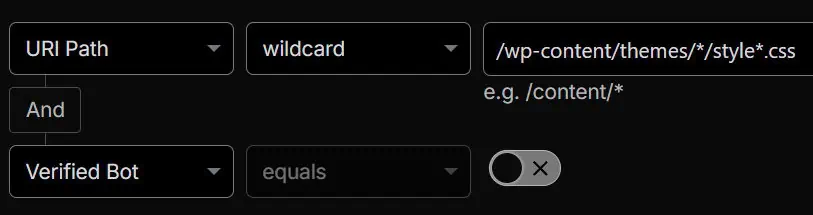
In the same way that bots try to crawl various .txt files, they also attempt to access theme styling files, which are almost always located at /wp-content/themes/name_of_theme/style.css. We assume this is done to determine whether a specific theme exists and, if so, to exploit possible vulnerabilities.
Ideally, we would challenge these requests. However, these files are accessed by human visitors as well. If we challenged them, the page would appear unstyled because the theme styling files would not load, as they would be challenged by Cloudflare in the background. So all we can do is rate limit these requests so that legitimate visitors can access them, while listing attacks cannot.
We also exclude verified bots so that these requests do not count toward the rate limiting threshold and are not blocked unnecessarily.

AI crawlers can be a nightmare when they decide to crawl an entire site. Since they operate purely for AI training purposes, it’s reasonable to limit them: it’s okay if they use our content and reference us, but not at any cost.
Don’t have Cloudflare? You can rely on the .htaccess file
The #1 option we recommend is using Cloudflare because it’s very flexible and requests don’t even touch your site. It will save you a lot of headaches.
However, if you don’t want to or can’t use Cloudflare and you are using Apache or LiteSpeed as web server, you can add a few security rules to the .htaccess file that will mimic what we were doing in Cloudflare. Not all of them, though, since the .htaccess file is not as flexible and cannot rate limit or determine which requests come from a known bot, for example.
Go ahead and open your .htaccess file, located in the root of your file system, and add the following at the beginning of the file.
<IfModule mod_rewrite.c>
    # Block arbitrary PHP files in site (GET only)
    RewriteCond %{HTTP_COOKIE} !wordpress_logged_in_ [NC]
    RewriteCond %{REQUEST_METHOD} =GET [NC]
    RewriteCond %{REQUEST_URI} \.php$ [NC]
    RewriteCond %{REQUEST_URI} !^/(index|wp-login|wp-cron)\.php$ [NC]
    RewriteCond %{REQUEST_URI} !^/wp-admin/ [NC]
    RewriteRule .* - [F]

    # Block wlwmanifest always
    RewriteCond %{REQUEST_URI} (wlwmanifest|xmlrpc\.php) [NC]
    RewriteRule .* - [F]

    # Block directory-style access to /wp-* paths
    RewriteCond %{REQUEST_URI} ^/wp- [NC]
    RewriteCond %{REQUEST_URI} /$
    RewriteCond %{REQUEST_URI} !^/wp-admin/ [NC]
    RewriteCond %{REQUEST_URI} !wp-json [NC]
    RewriteRule .* - [F]

    # Block /wp-json/ (except /wp-json/oembed/1.0/embed and wp-json/wp/v2/search) unless user is logged in
    RewriteCond %{HTTP_COOKIE} !wordpress_logged_in_ [NC]
    RewriteCond %{REQUEST_URI} ^/wp-json/ [NC]
    RewriteCond %{REQUEST_URI} !^/wp-json/oembed [NC]
    RewriteCond %{REQUEST_URI} !^/wp-json/wp/v2/search [NC]
    RewriteRule .* - [F]

    # Block User ID Phishing Requests
    RewriteCond %{QUERY_STRING} (author=\d+|action=register) [NC]
    RewriteRule .* - [F]

    # Protect login/admin POST requests from off-site sources
    RewriteCond %{REQUEST_METHOD} POST
    RewriteCond %{REQUEST_URI} ^/wp-login\.php$ [NC]
    RewriteCond %{HTTP_REFERER} !^https?://([^/]+\.)?domain\.com [NC]
    RewriteRule .* - [F]
</IfModule>
Let’s go over all the blocks of code again.
# Block arbitrary PHP files in site (GET only)
RewriteCond %{HTTP_COOKIE} !wordpress_logged_in_ [NC]
RewriteCond %{REQUEST_METHOD} =GET [NC]
RewriteCond %{REQUEST_URI} \.php$ [NC]
RewriteCond %{REQUEST_URI} !^/(index|wp-login|wp-cron)\.php$ [NC]
RewriteCond %{REQUEST_URI} !^/wp-admin/ [NC]
RewriteRule .* - [F]
This block of code prevents all attempts to open arbitrary .php files, in the same way we did with one of the Cloudflare conditions. Every GET request for a .php file that does not come from a logged-in user (cookie wordpress_logged_in_) and that is not index.php, wp-login.php, or wp-cron.php, which are the only ones that should be requested on the front end, is blocked.
The additional condition RewriteCond %{REQUEST_URI} !^/wp-admin/ [NC] excludes the /wp-admin/ path from this rule. This was added because Apache may issue GET requests to .php files inside /wp-admin/ during normal admin operations, even for users who are not yet recognized as logged in by this rule. Without this exclusion, your login page may simply not work. On OpenLiteSpeed, this exclusion is not necessary because its rewrite handling works differently and does not trigger the same behavior, but on Apache it ensures the admin area continues to function correctly while still blocking direct access to arbitrary PHP files elsewhere on the site.
# Block wlwmanifest and xmlrpc.php always
RewriteCond %{REQUEST_URI} (wlwmanifest|xmlrpc\.php) [NC]
RewriteRule .* - [F]
Here we block all attempts to access any URL that contains the strings wlwmanifest, used by Windows Live Writer and almost completely useless, or xmlrpc.php, used for the XML-RPC protocol and commonly exploited.
Warning: There is a high chance that you can safely leave this rule as is, but if you know that a plugin on your site uses the XML-RPC protocol, remove that condition from the rule so the requests can go through. The line would end up looking like this:RewriteCond %{REQUEST_URI} wlwmanifest [NC]
# Block directory-style access to /wp-* paths
RewriteCond %{REQUEST_URI} ^/wp- [NC]
RewriteCond %{REQUEST_URI} /$
RewriteCond %{REQUEST_URI} !^/wp-admin/ [NC]
RewriteCond %{REQUEST_URI} !wp-json [NC]
RewriteRule .* - [F]
These are the rules that block exposed directory searches that bots do, meaning a path that starts with /wp- and ends with a /, such as mydomain.com/wp-includes/ or mydomain.com/wp-content/uploads/2023/. It also excludes admin pages, located at /wp-admin/, and the REST API, which contains wp-json in the URL request.
# Block /wp-json/ (except /wp-json/oembed/1.0/embed and wp-json/wp/v2/search) unless user is logged in
RewriteCond %{HTTP_COOKIE} !wordpress_logged_in_ [NC]
RewriteCond %{REQUEST_URI} ^/wp-json/ [NC]
RewriteCond %{REQUEST_URI} !^/wp-json/oembed [NC]
RewriteCond %{REQUEST_URI} !^/wp-json/wp/v2/search [NC]
RewriteRule .* - [F]
This rule attempts to block unauthorized REST API requests, which is what the /wp-json/ part refers to. Usually, only external services need access to it. Emulating the same rule that we explained earlier for Cloudflare, in this order we are stating:
- If a user is not logged in (cookie
wordpress_logged_in_), - and requests a URL containing the
/wp-json/path, - and it’s not
/wp-json/oembed(since we cannot detect known bots and should therefore allow requests for link previews on Facebook, LinkedIn, and similar platforms that use this endpoint, for example), - and it’s not
/wp-json/wp/v2/search(sometimes used for searches, such as in the Blocksy theme), - block it.
Warning: The REST API is widely used. Many plugins and services rely on it to retrieve information and provide functionality. For example, WooCommerce makes requests to /wp-json/wc/, Contact Form 7 to /wp-json/contact-form-7/, and Events Manager to /wp-json/events-manager/. You must list all of these as exceptions as well, otherwise the respective plugin or service will most likely stop working. For example, if you need WooCommerce to be allowed, add this line below the search one:RewriteCond %{REQUEST_URI} !^/wp-json/wc [NC]
# Block User ID Phishing Requests
RewriteCond %{QUERY_STRING} (author=\d+|action=register) [NC]
RewriteRule .* - [F]
In this case, we block all attempts to discover all usernames on a site when bots attempt to access author=X query strings, known as user enumeration, or when they try to access the default registration page using the query string action=register.
Warning: Do not add this condition if you need these URLs to be publicly accessible:
– https://yourdomain.com/wp-login.php?action=register
– https://yourdomain.com/?author=X (where X is a number)
Or if only one of them needs to be available, remove the other one from the rule. For example:RewriteCond %{QUERY_STRING} author=\d+ [NC]
# Protect login/admin POST requests from off-site sources
RewriteCond %{REQUEST_METHOD} POST
RewriteCond %{REQUEST_URI} ^/wp-login\.php$ [NC]
RewriteCond %{HTTP_REFERER} !^https?://([^/]+\.)?domain\.com [NC]
RewriteRule .* - [F]
And finally, we get to the coolest security rule. Its purpose is to block suspicious login attempts. It first checks if the request method is POST, meaning someone is submitting data (such as a login form). It then confirms the request is targeting /wp-login.php, which is the WordPress login endpoint. Next, it examines the HTTP_REFERER header and makes sure the request originated from the same domain (domain.com or any of its subdomains). If the referrer does not match the site’s own domain, the final RewriteRule denies the request with a 403 Forbidden response ([F]). In effect, with this we are making sure that anyone who attempts to login will do so if they visited first the same domain (emulating a human; bots send direct requests without previously visiting any page).
Warning: You must replace domain\.com with your actual domain, escaping any dots. For example, if your site is blog.accelerawp.com, you should change the second-to-last line to:RewriteCond %{HTTP_REFERER} !^https?://([^/]+\.)?blog\.accelerawp\.com [NC]
Still want to use a security plugin? Okay…
We reiterate that you don’t need a security plugin, but if you still want to use one, take a look at our article where we compare which option has the least impact on your website in terms of performance.
What about security headers?
Security headers, such as Strict-Transport-Security or Content-Security-Policy, strengthen browser-side protections, so they would be more appropriate for a separate article. This article focuses primarily on core WordPress and server-side fundamentals. Not having these security headers does not necessarily mean the site is vulnerable; it simply indicates that those specific HTTP headers are not currently configured.
Any other suggestion?
Feel free to share any other suggestions in the comments, as long as they don’t involve installing security plugins 😉