WordPress generates quite a few thumbnails by default (up to 7), so if you’re someone looking to stop WordPress from creating these on every upload, I’ll show you how to do it without any plugin. This guide covers the three sizes you can disable in Settings > Media (Thumbnail, Medium, Large) and the three sizes you can disable via code (medium_large, 1536x1536, 2048x2048), plus the -scaled image threshold.
Note: Disabling the thumbnails with these instructions applies only to new uploads. Old images will still have the already created thumbnails associated to them, so you will need to run a thumbnail regeneration using a plugin like reGenerate Thumbnails Advanced, or via WP‑CLI if you prefer the command line.
Disable the Thumbnail size
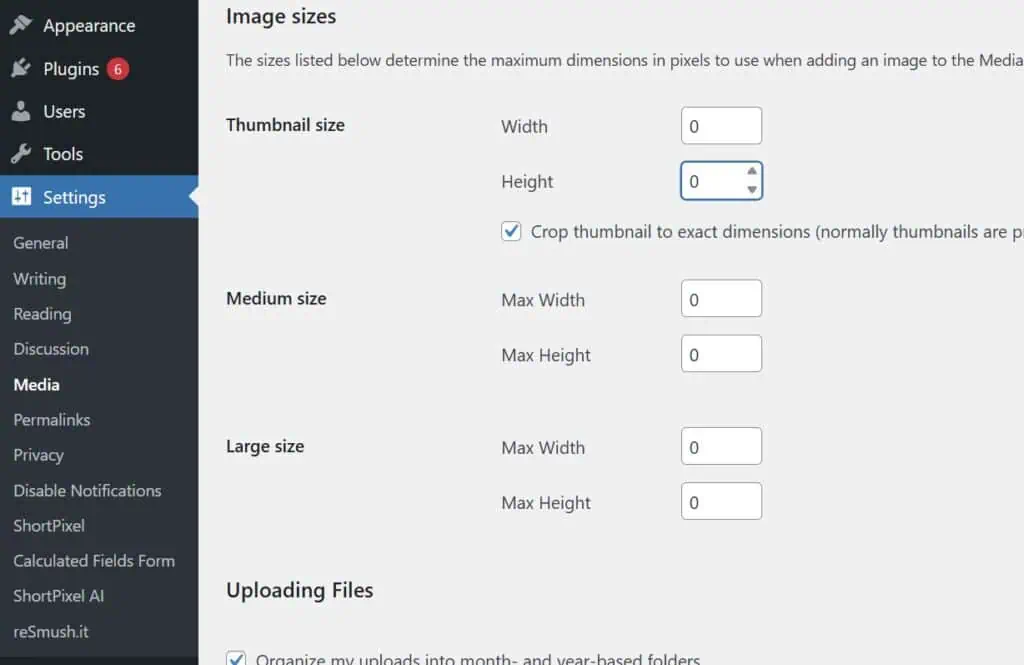
The Thumbnail size is by default set to 150×150 in crop mode, which means the aspect ratio is not preserved, and you’ll always get a square 150×150 thumbnail. To stop generating this smallest size, go to Settings > Media and set both the height and width to 0. This prevents new thumbnails while leaving existing files untouched.
Disable the Medium size
The Medium size is by default set to a maximum of 300×300. It keeps the aspect ratio. To disable the Medium size, go again to Settings > Media and set both the Max Height and Max Width to 0, as shown in the screenshot above.
Disable the Large size
The Large size is by default set to a maximum of 1024×1024. It keeps the aspect ratio. The same applies to the Large size: go to Settings > Media and set both values to 0, also as shown in the screenshot.
Disable the Medium-Large size
The Medium-Large size is by default set to a maximum width of 768px. It also keeps the aspect ratio. In this case, there’s no menu or section to disable it. You’ll need to add this complete, copy‑pasteable code to your functions.php file:
function accelera_disable_medium_large_images( $sizes ) {
  unset( $sizes['medium_large'] );
  return $sizes;
}
add_filter( 'intermediate_image_sizes_advanced', 'accelera_disable_medium_large_images' );
Disable the 2x Medium-Large size
The 2x Medium-Large size is by default set to a maximum of 1536×1536, also keeping the aspect ratio. This can’t be disabled from any menu either. Add this working snippet to the functions.php file:
function accelera_disable_2x_medium_large_images( $sizes ) {
  unset( $sizes['1536x1536'] );
  return $sizes;
}
add_filter( 'intermediate_image_sizes_advanced', 'accelera_disable_2x_medium_large_images' );
Disable the 2x Large size
The 2x Large size is by default set to a maximum of 2048×2048, and it also keeps the aspect ratio. To disable this thumbnail size, add the following snippet to functions.php:
function accelera_disable_2x_large_images( $sizes ) {
  unset( $sizes['2048x2048'] );
  return $sizes;
}
add_filter( 'intermediate_image_sizes_advanced', 'accelera_disable_2x_large_images' );
Disable the -scaled size
The so-called -scaled size is a relatively new feature that creates a new image size if the original image is larger than 2560px wide or tall. This generated image gets a -scaled suffix, becomes the largest available size and is used when you insert the image at Full size; WordPress also updates the attachment metadata (including _wp_attached_file) to reference the scaled version while keeping the original file on the server. If you often upload very large images and need the original preserved as the default, it’s a good idea to turn this off.
If you want to disable the scaled size, simply add this code to the functions.php:
add_filter( 'big_image_size_threshold', '__return_false' );Disabling all thumbnails generated by WordPress
What if you want to disable all the thumbnails (or image sizes) created by WordPress at once? You can combine the previous codes into one and place it in the functions.php file as well. Before adding the snippet below, set Thumbnail, Medium, and Large to 0 in Settings > Media. After adding the code, upload a test image and check that no no new sizes were created. To roll back, remove the code snippet and restore your Media settings.
// Disabling thumbnails
function disable_thumbnails_wordpress( $sizes ) {
  unset( $sizes['thumbnail'] );      // disable thumbnail
  unset( $sizes['medium'] );         // disable medium
  unset( $sizes['large'] );          // disable large
  unset( $sizes['medium_large'] );   // disable medium-large
  unset( $sizes['1536x1536'] );      // disable 2x medium-large
  unset( $sizes['2048x2048'] );      // disable 2x large
  return $sizes;
}
add_filter( 'intermediate_image_sizes_advanced', 'disable_thumbnails_wordpress' );

add_filter( 'big_image_size_threshold', '__return_false' ); // disable scaled sizeTip: For changes that survive theme updates, place the same code in the functions.php of your child them. This keeps your settings intact when updating your theme.