One common issue flagged by tools like Google PageSpeed Insights for WordPress sites is the presence of render blocking requests. These requests can significantly delay the time it takes for your page to become visible to visitors. That’s obviously not good!
In this post, we’ll explore what render blocking resources are, why they are bad (or good), why they frequently appear in WordPress environments, and practical strategies to manage and reduce their impact without compromising your site’s functionality.
In this article:
What render blocking requests actually are
When a browser loads a page, it parses the HTML to build the DOM, then does the same with the CSS and its counterpart CSSOM, and these two are combined to create the render tree, which is used by the browser to make layout and position calculations before finally starting to render the page and paint pixels. Don’t worry, the technicalities of the DOM, CSSOM, and render tree are not a subject for this article (phew…).
That initial parsing process is the key here. When the browser parses the HTML from top to bottom, it must pause the process to download and process every inline CSS block or CSS file it encounters during parsing, which will then be used to build the CSSOM. This is done so the browser can make sure that the page layout and styling are displayed and behave correctly. This is also why, by default, all CSS from the source code blocks the rendering of the page and why this is a good thing. No one likes seeing unstyled pages, even for a split second.
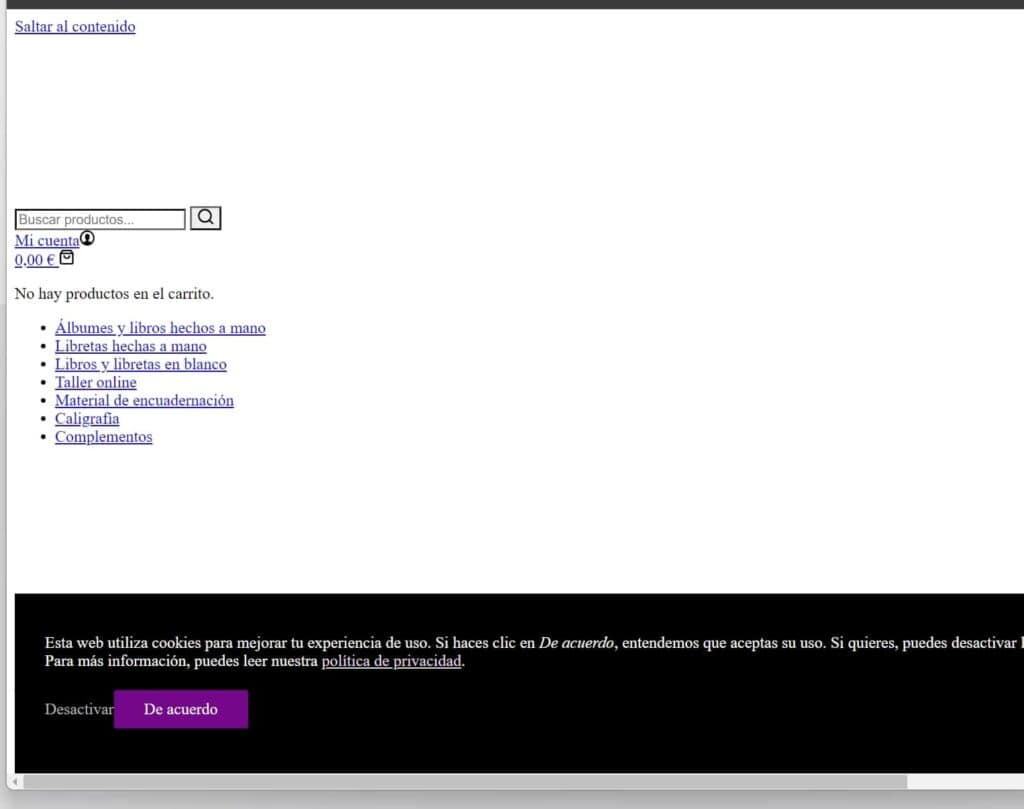
The same can happen with JavaScript. A link to a JavaScript file is render blocking by default, but developers can easily change the behavior by adding certain attributes to the script tag (we will see that later).
To sum it up, render blocking resources are files that the browser must load and process before it can paint the visible parts of a webpage.
Why render blocking resources are common in WordPress
Once we understand that all CSS is render blocking by default, it becomes clear why render blocking requests are common in WordPress. Sites often rely on multiple themes and plugins, each adding their own CSS and JavaScript files. Themes are structured to load various styles and scripts globally, even if some are not needed on every page. Plugins, especially those that add functionality or visual elements, contribute additional assets that can block rendering.
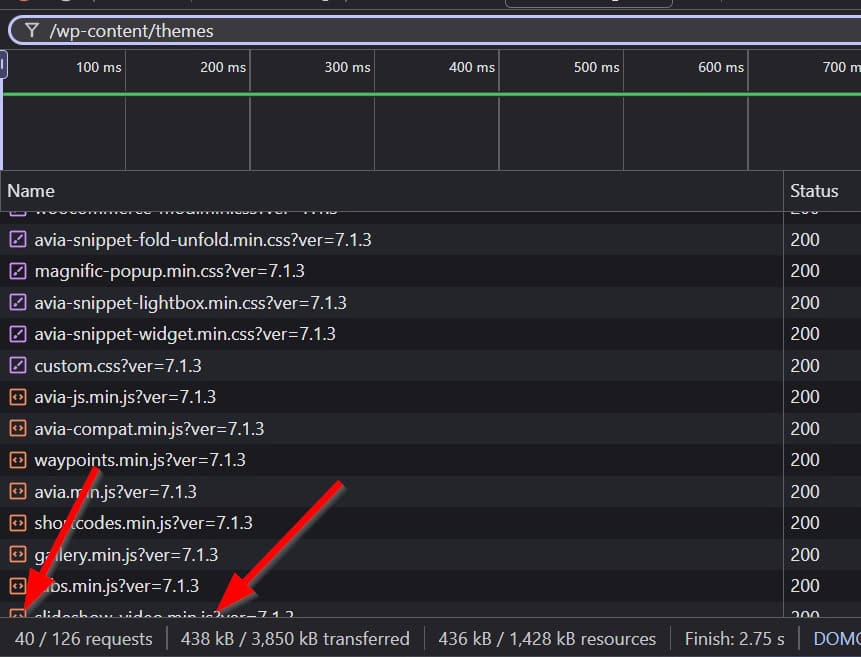
Page builders and multipurpose themes add even more CSS and JS to cover all kinds of needs for clients who want different features. This is actually one of the problems when developers prioritize quantity over quality: the product grows continuously and can become a CSS/JS monster. For example, Enfold, a very popular theme but quite heavy, on a clean WordPress installation loads almost half a megabyte of CSS and JS files spread across 40 files.
How render blocking requests impact performance
From a visitor’s point of view, render blocking requests delay the moment when any part of the page becomes visible (the First Paint). Considering that the longer a page takes to appear to load, the more likely a user is to leave, render blocking resources can directly impact conversions and sales. This is especially important on mobile devices or slower connections, where bandwidth and processing power are limited, as visitors will perceive the page as sluggish and unresponsive.
From a technical perspective, the effect of render blocking requests is best understood through the Web Vitals: both the First Contentful Paint (FCP) and the Largest Contentful Paint (LCP; a Core Web Vital) are affected. FCP measures the time from when a page begins loading to when any content first appears on the screen, while LCP measures the time until the largest element is rendered. Therefore, the more render blocking CSS or JS the browser must parse, the longer it will take for any content to appear.
Indirectly, render blocking resources may also affect Total Blocking Time (TBT) and Interaction to Next Paint (INP), not because they block rendering directly, but due to the additional styling or functionality they add. But that’s a topic for another blog post.
Identifying render blocking requests in WordPress
Chances are you already know how to identify render blocking resources, as you likely arrived at this post after seeing a warning on PageSpeed Insights. This is actually the easiest method: just run a test on PageSpeed Insights or use Lighthouse. In the Insights section, you will see a list of render blocking requests, showing the CSS and JavaScript files that delay rendering.
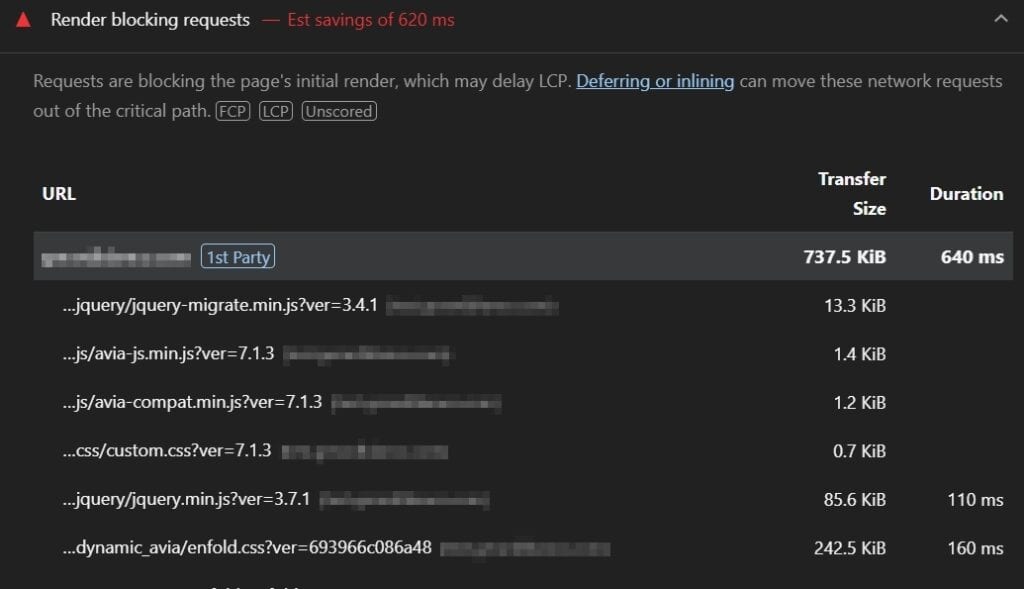
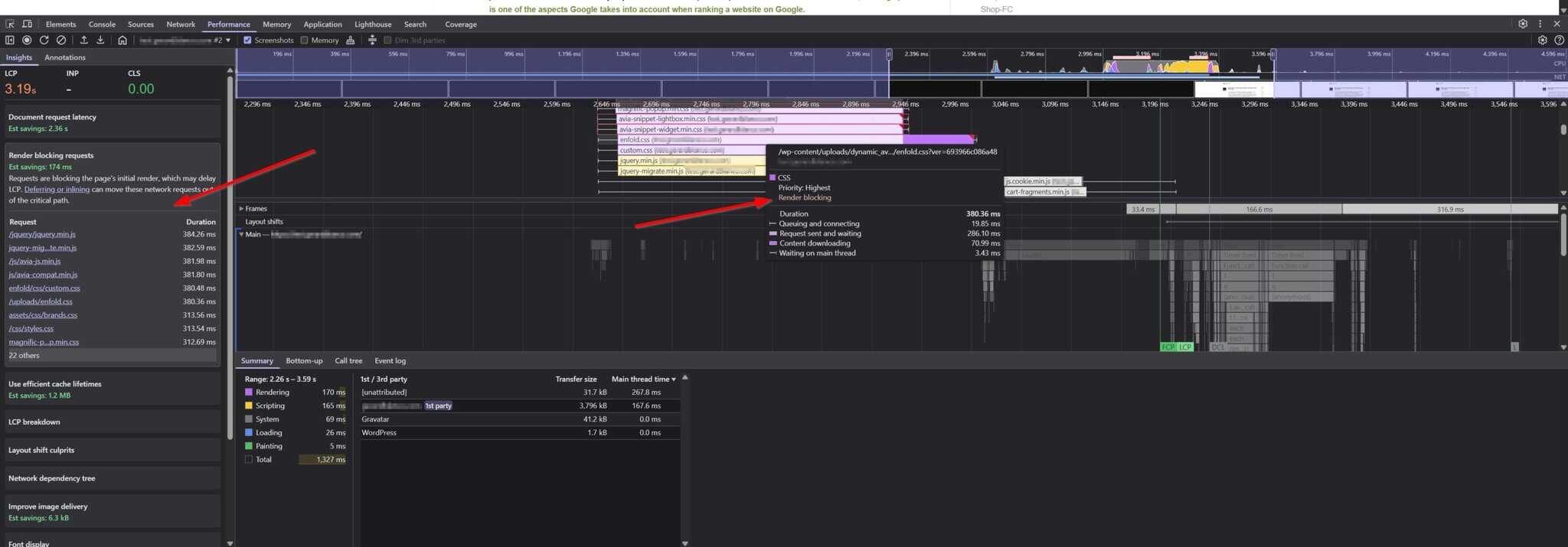
You can also use your browser’s Developer Tools. Open the Performance tab and record a new performance trace. Once you stop the recording, the browser will literally tell you what’s render blocking. Here’s a screenshot showing the two places where this happens: on the sidebar under the Insights section, and in the timeline when hovering over the loading duration of each file.
How to remove render blocking requests in WordPress
All right, enough chit-chat, let’s get to the interesting part. There are several techniques to eliminate render-blocking requests. The problem with WordPress is that we hardly ever have any control over the code of the plugins or themes, so we must rely on optimization plugins or manually add some code snippets to alter their functionality. Honestly, using an optimization plugin will save you a lot of headaches, so we recommend you go that route.
Async or defer JavaScript
HTML allows you to use two attributes in your script tags: async and defer. These attributes let you control how the browser loads scripts without blocking rendering. We invite you to click here for an in-depth explanation of how these attributes work and how to use them effectively.
Delay JavaScript
A step beyond loading JavaScript asynchronously is to delay it until a user interacts with the page. This is particularly useful for third-party scripts (Google Tag Manager, Facebook Pixel, YouTube, etc.), over which we have little control since they are not hosted on our server. By delaying their loading until they are really needed, we prevent the browser from blocking page rendering due to these scripts. After all, JavaScript primarily handles interaction, and interaction can often wait until the page is visible.
Our recommendation is to delay as many JavaScript files as possible, as well as deferring them too. Both techniques can be used at the same time.
Click here to learn more about how to delay JavaScript effectively.
Inline critical CSS and delay non-critical CSS
Critical CSS includes the styles needed to render the page’s initially visible content, also called “above-the-fold.” Extracting and inlining these critical styles while delaying the rest is a useful technique to get rid of render-blocking CSS requests. Inline CSS lives directly inside the HTML being parsed (via the <style> tag or style attribute), so we avoid network requests and we let the browser begin layout and paint sooner. For more information on critical CSS, click here.
Remove unused CSS
Plugins and themes are designed to meet a wide range of needs and users. They are not custom-built for a single website. That’s why they often include a lot of CSS that is unnecessary for many sites. Removing unused CSS means eliminating these useless styles.
In the context of WordPress, removing unused CSS involves two steps:
- Detect CSS that is not needed and remove it.
- Get the used CSS and store it in a place that is available to the browser as early as possible. This can be done by placing it in a
<style>tag at the beginning of the document (similar to critical CSS) or in a preloaded CSS file.
See our guide on how to remove unused CSS in WordPress for a detailed walkthrough, and remember: if you remove unused CSS with an optimization plugin, you won’t need to use Critical CSS.
Minify CSS and JS
The goal here is basically to reduce the size of CSS and JS as much as possible. The smaller the files, the faster they download and the sooner the browser can start parsing them.
Today, minification is easily handled by nearly all optimization plugins. Read more about tools you can use to minify CSS and JavaScript files.
Avoid heavy page builders, plugins or themes
Yes, this is easier said than done, but we strongly encourage to try to rebuild your site without a page builder or using a more lightweight theme. It’s really worth it. Don’t believe us? Just see when testing a sample page with the Blocksy theme:
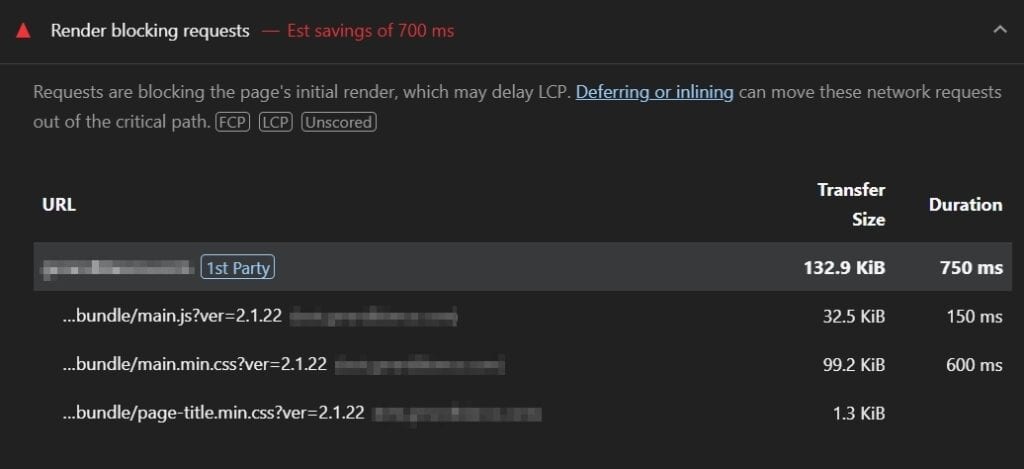
And now compare it with the same page converted to Elementor using Elementor’s default settings:
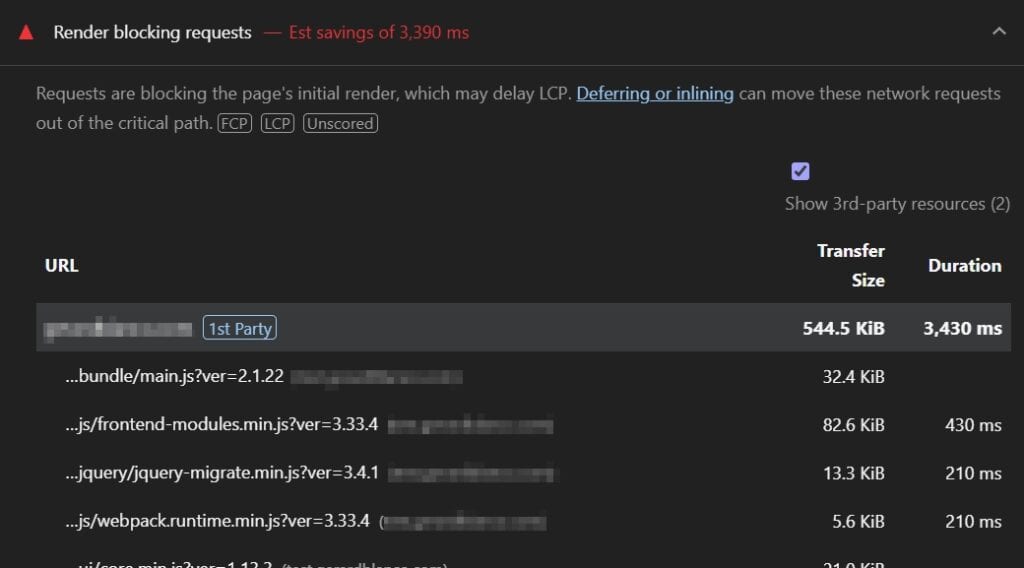
You can also see a similar comparison between Gutenberg and Elementor here, or or check our recommended list of fast and lightweight themes.
The same principle applies to plugins: use as few plugins as possible and avoid plugins that add excessive assets.
Why is this important? Because choosing the lightest possible plugins will make us use less CSS and JS files, which will help us reduce the number of render blocking resources.
Load scripts modularly and only on pages where they are needed
Another technique that can be extremely useful, depending on the plugin or theme, is to force your plugins or theme CSS/JS files to load only where you specify. For example, why should a contact form plugin load all its CSS and JS files on the homepage when there isn’t even a contact form there?
There are several ways to handle this. The easier method is using Perfmatters’ awesome Script Manager. It can be a bit confusing the first time you use it, but so can any plugin that allows you to disable scripts on a per-post or per-page basis (like Asset CleanUp): the feature is not meant to be used lightly! Here’s a link to the official Perfmatters documentation for their Script Manager feature if you want to learn more.
Also, you can even go a step further and disable entire plugins from executing. This means WordPress won’t even run their PHP files upon page request, which still happens even if the plugin’s CSS/JS is disabled. This feature does not directly affect the “Render blocking requests” warning, but it helps with many other aspects, including overall loading time, TTFB, LCP, and FCP, because you are essentially making your site lighter on the fly.
To disable entire plugins from executing, you can use the MU-mode of Perfmatters’ Script Manager, or you can do it manually using our guide.
When you shouldn’t eliminate render blocking resources
Some render blocking resources are necessary to make sure that your site’s layout and scripts function correctly. Sliders are a typical example: their scripts and styles are usually large and render blocking, but they must be, because they are almost always placed in the hero sections of pages. Stopping them from being render blocking could cause layout shifts, broken functionality, or visual glitches, which is not worth the few extra points in PageSpeed Insights.
In short, you shouldn’t remove anything needed to properly display and interact with the above-the-fold section. Remember those pages you visited that looked unstyled for a brief moment? Yes, they are doing it wrong!